Client Management (CRM)
Your Skandage Site does more than capture new leads; it actively manages your existing book of business.
The built-in CRM is designed specifically for financial consultants. It automates your "goodwill" touchpoints and tracks your review cycles so you never let a client relationship go cold.
1. Importing & Exporting Clients
You don't have to add your hundreds of clients one by one. You can migrate your entire existing database in seconds.
Bulk Upload (Excel / CSV)
- Go to your Dashboard > CRM and click Import.

- Upload your CSV file into the Skandage dashboard. The system will automatically create individual profiles for everyone on the list.
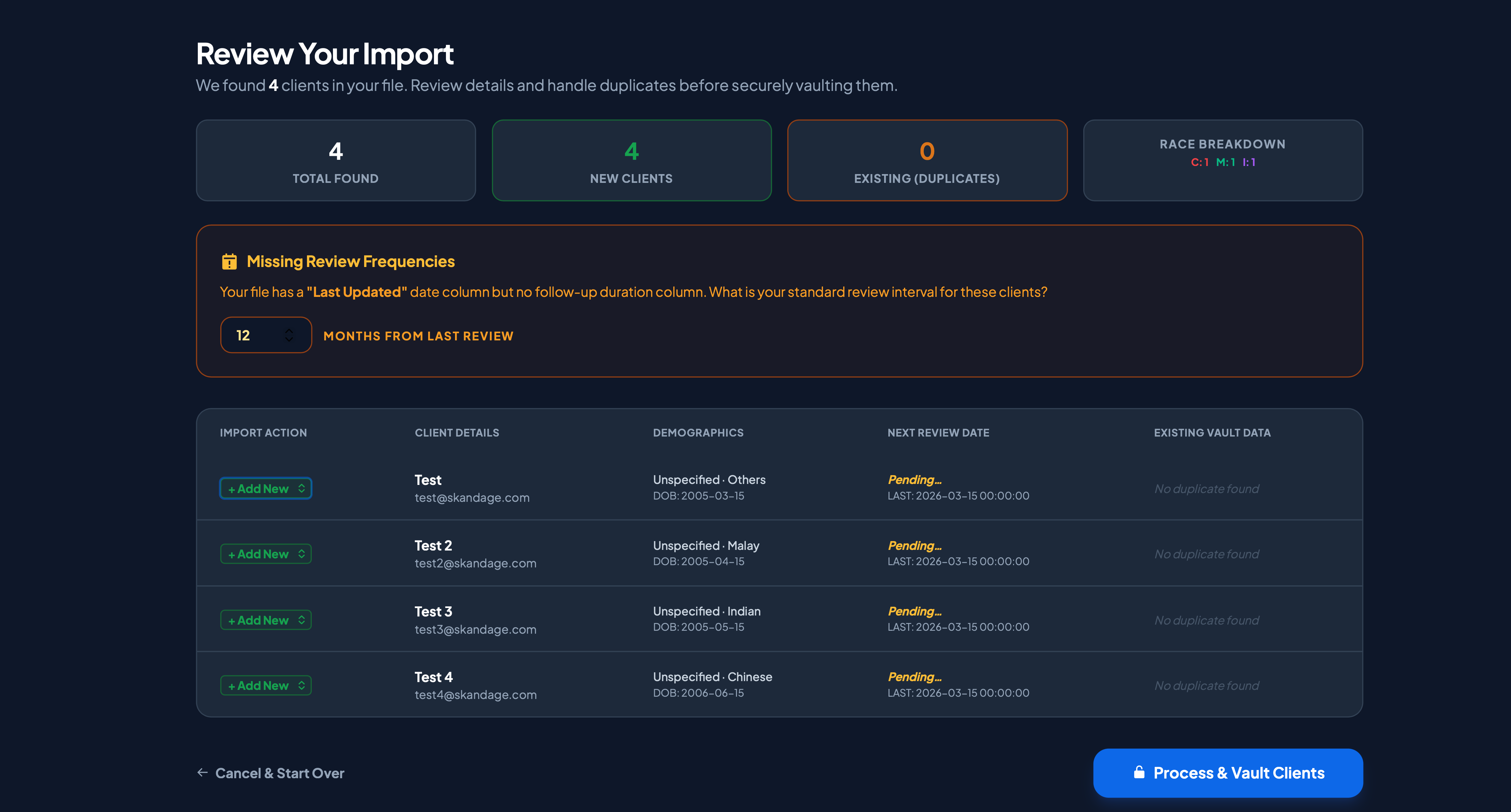
Exporting Your Data
You own your data. If you ever need to run custom Excel calculations or back up your list, simply click Export Data in the top right corner of your CRM to instantly download your entire client roster as a CSV file.
2. Managing Client Details & Tags
Every client has a dedicated profile "dossier" that acts as your single source of truth.
Editing Details
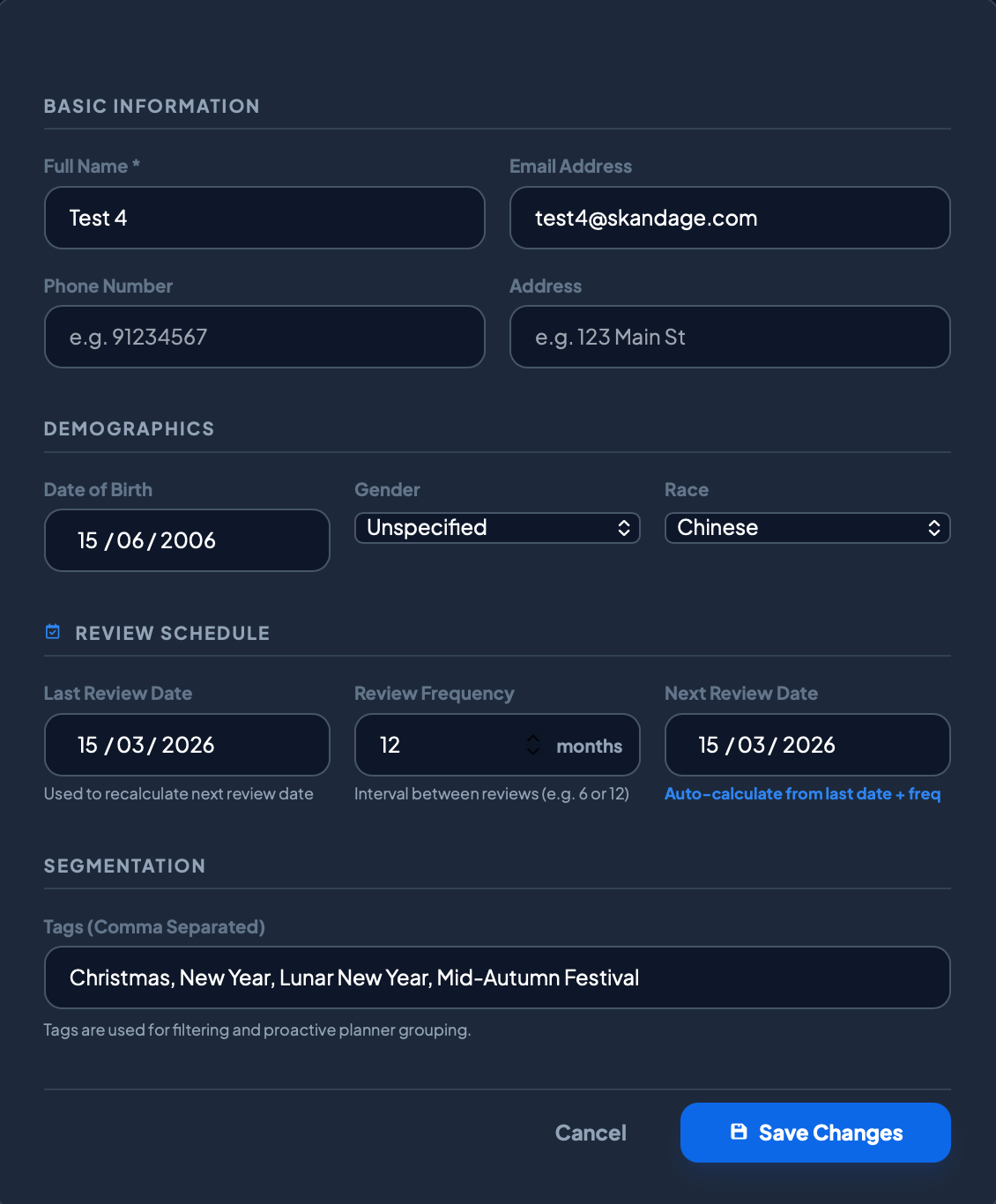
To update a client's information (like a new phone number or a change in email address), simply click on their name in your CRM list. Edit the relevant fields and hit Save.

Using Tags
Tags are the secret to highly targeted marketing. Instead of blasting the same message to everyone, you can categorize your clients.
- How to add a Tag: Inside a client's profile, type a keyword into the Tags field and hit enter (e.g.,
High-Net-Worth,Business Owner,Young Parent,Golf). - Why it matters: When a new tax policy affecting business owners is announced, you can filter your CRM by the
Business Ownertag and instantly broadcast a relevant article only to them.
3. The Policy Review Engine
Financial consulting revolves around the annual review. Skandage automates this timeline.
Setting the Previous Review Date
Inside every client's profile is a field called Last Review Date.
- After you conclude a meeting with a client, open their profile.
- Log today's date in the Last Review Date field.
- The Automation: The system will quietly start a countdown. 11 months from that date, Skandage will ping your Telegram to remind you: "It is time to schedule an annual review with [Client Name]."
4. Automated Goodwill (Greeting Cards)
Top producers never forget a birthday. Skandage ensures you don't either, without requiring any manual tracking.
Birthday Automations
If a client has a Date of Birth saved in their profile, the system will automatically queue a greeting.
- Go to Dashboard > Upcoming > Card Library.
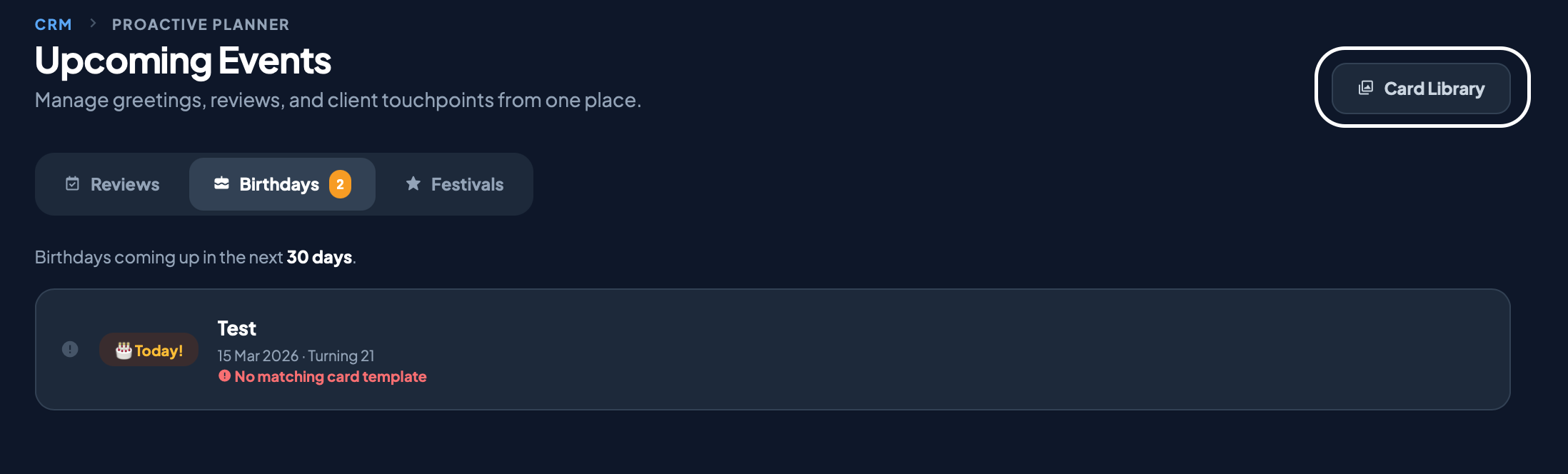
- Click on Add Card Design.
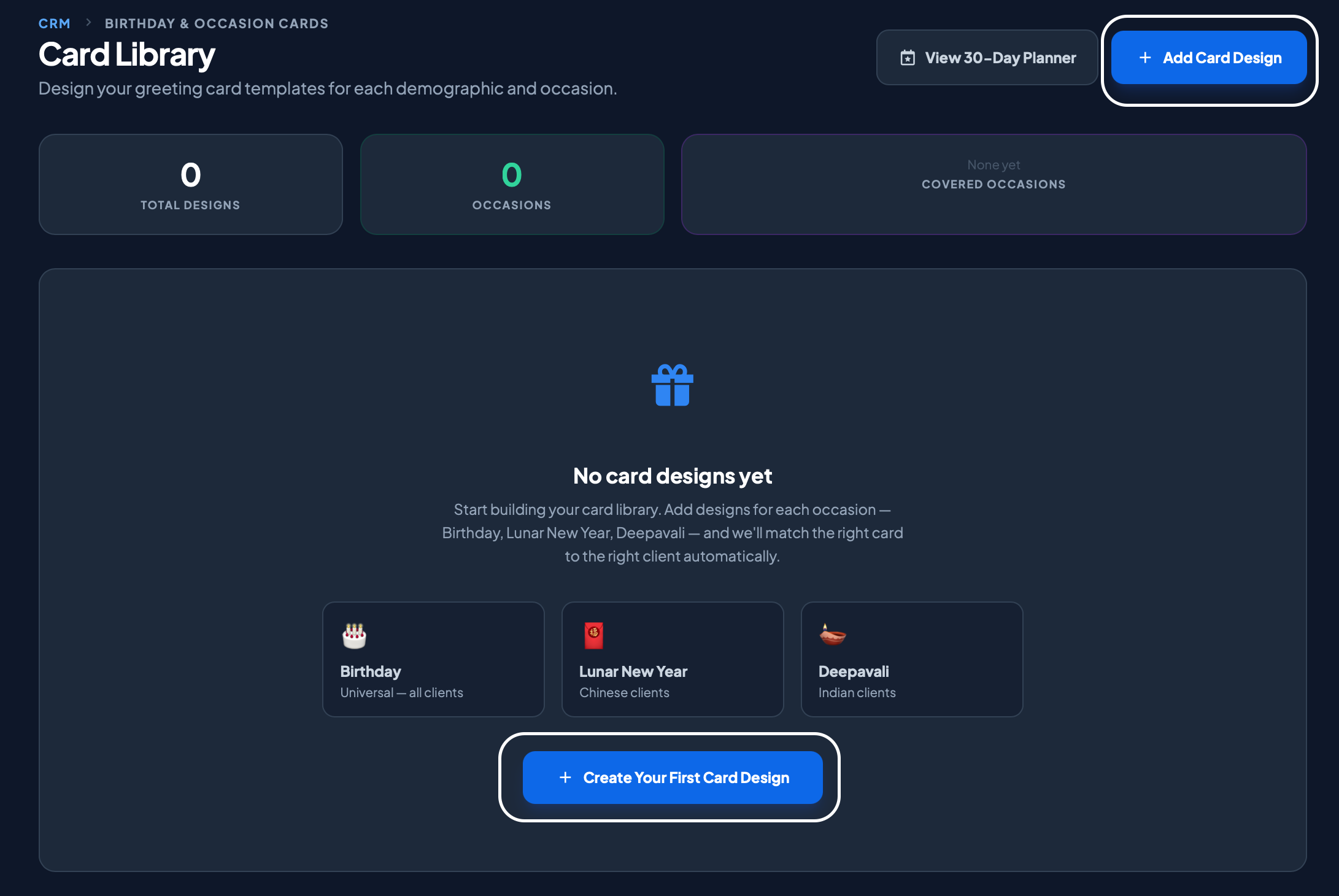
- You can customize the default message template as well as the image of the card.
- You can create multiple cards for different demographics (Also based on the tags of clients in the database). On the morning of their birthday, the system will automatically send a personalized Email or format a WhatsApp message for you to dispatch with one click.
Festive Cards
Singapore is a multi-cultural hub, and acknowledging festive seasons builds massive goodwill.
- In the Greetings tab, you can enable automated cards for major holidays (Lunar New Year, Hari Raya, Deepavali, Christmas).
- The system will automatically broadcast a beautifully designed, branded e-card to your selected client tags on the morning of the festival.
Skandage Tip: Automated greetings keep you top-of-mind. It is incredibly common for a client to reply to an automated birthday message with, "Thank you! By the way, I recently had a baby, can we meet up next week to discuss hospitalization plans?" Set it up once, and let the system generate appointments for you.
Next Step
Your CRM is loaded and your automations are firing.
If you are ready to explore the offline desktop tools for heavy-duty policy processing, proceed to the Insurance Suite Guides.